A generated song arrives as one file. A generated shot of a street singer arrives with the voice, the guitar and the square all baked into a single track. You can turn it up or down. That is all. The moment you want the singer quieter than the guitar, or the beat without the melody, the file has nothing more to give.
Split stems takes it apart.
Four parts, four lanes
Select the clip on the timeline and choose Split stems from the Tools menu. It is also in the clip's right-click menu and in the inspector's Tools tab. It works on a video clip with sound and on an audio clip.
The Separate audio sheet opens with Split stems chosen. Under it sit four chips: Vocals, Drums, Bass and Other. Leave all four on and you get all four. Turn some off and the ones you picked land on their own, with everything else summed into one Rest lane. Pick only Vocals and you get the voice and the backing, two lanes, nothing to clean up after. At least one chip always stays on, so the sheet never offers an empty split.
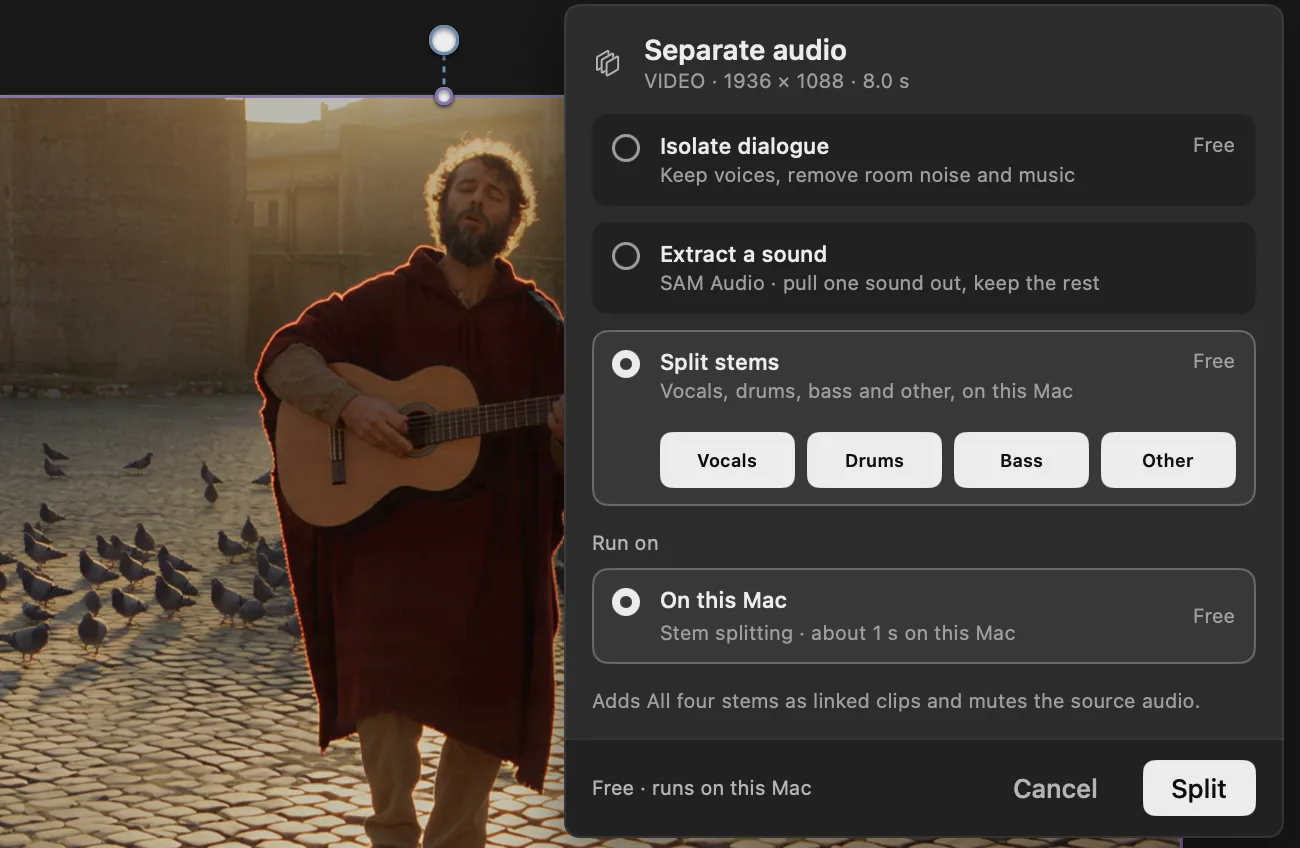
The line under the options says what will happen before you press anything: which stems land as linked clips, and that the source audio gets muted. Press Split.
It runs on your Mac
There is no cloud option for this one. Split stems runs on this Mac, every time, and it is free. The sheet says so twice.
The stem model downloads once, about 170 MB, from Settings › On-device models. That is small next to the other on-device models, and after it is on the machine the song never leaves it. Nothing goes up, nothing waits in a queue, and no credits move. The sheet also estimates how long the run will take. For the 8-second shot above it said about a second.
It takes up to 10 minutes of audio per run. A longer clip gets a plain message asking you to trim it first, which is the right size for a song or a scene anyway.
What lands on the timeline
The stems arrive as new lanes under the clip, named for what they hold, lined up to the frame with the picture. The source clip stays where it was with its own sound muted, so playback now comes from the lanes. Click any stem and the inspector shows where it came from, with Select source to jump back to the clip.
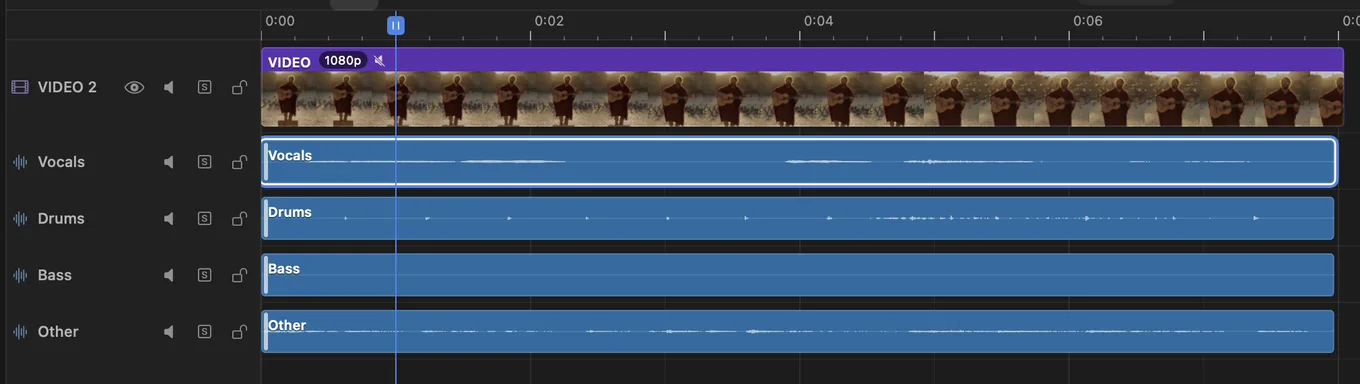
Each lane is an ordinary audio clip. Mute it, solo it, trim it, split it with the blade, put a Volume modifier on it. The whole split is one step in your history, so one Undo takes the lanes off and gives the clip its sound back.
Notice the Bass lane in that capture. A busker with an acoustic guitar has no bass player, and the lane says so. The split reports what is in the song. It does not invent parts to fill four rows.
When it earns its place
A song under a voice. You generated a track for the opening and it came with a singer. Now there is narration over it, and two voices fight. Split the song, take the Vocals lane down where the narrator speaks, and keep the band at full level. The music stays. The clash goes.
A remix of a generated song. The model gave you a good groove and a melody you don't love. Keep Drums and Bass, mute Other, and lay a new line from the next generation over the top. Or loop the drums from bar three for a cut that runs longer than the song did.
Drums for the cut. Cutting a montage to a beat is easier when you can see the beat. Solo the Drums lane, and its waveform shows every hit as a mark on the timeline. Cut to those, then bring the rest of the song back in.
A generated shot that sings. Some video models hand back a performance with the music already in it. Split the clip and the singing and the playing come apart. Then the vocal can sit under your score, or carry the scene on its own.
The other two ways to separate sound
Split stems sits in a list with two siblings, for sound that is not a song.
- Isolate dialogue keeps voices and removes room noise and music. Use it when the line matters and the background does not.
- Extract a sound pulls one sound out of the clip by description, such as "dog barking", and keeps the rest on its own lane.
Both arrive under the clip the same way, with the source muted.
Or ask for it
Cask MCP connects Cask Film to Claude and Codex, and it is on every plan.
"Split the music in the opening clip into stems and pull the vocals down under the narration."
The agent finds the clip, splits it on your Mac and turns the Vocals lane down.
Models that run on your Mac come with paid plans.
Split stems is in Cask Film now.